How to place an order
A screenshot for every step, from finding a product to tracking your order.
A phone number you can be reached on, and a Mobile Money wallet (MTN, Telecel or AT) or a Visa/Mastercard. An account is optional: you can check out as a guest.
Prefer to watch? Watch the video guide or download this guide as a PDF.
1. Find a product
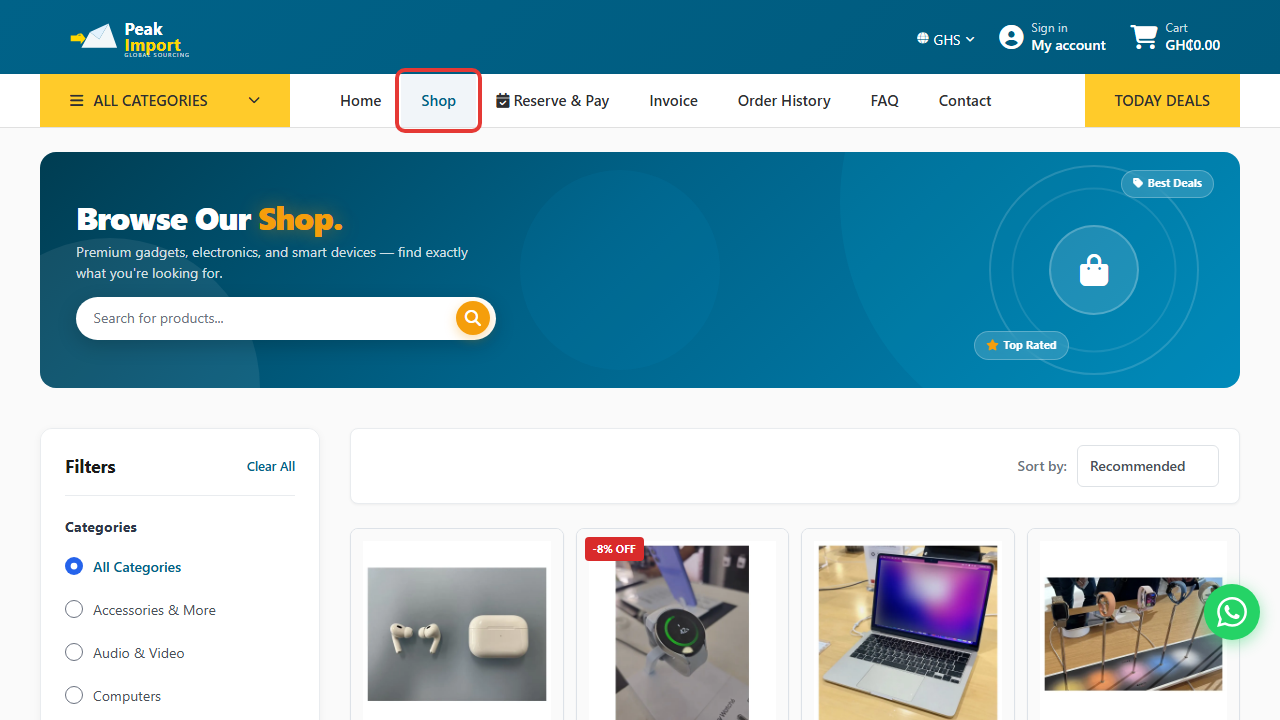
Step 1: Open the Shop
Click Shop in the menu to see all products.
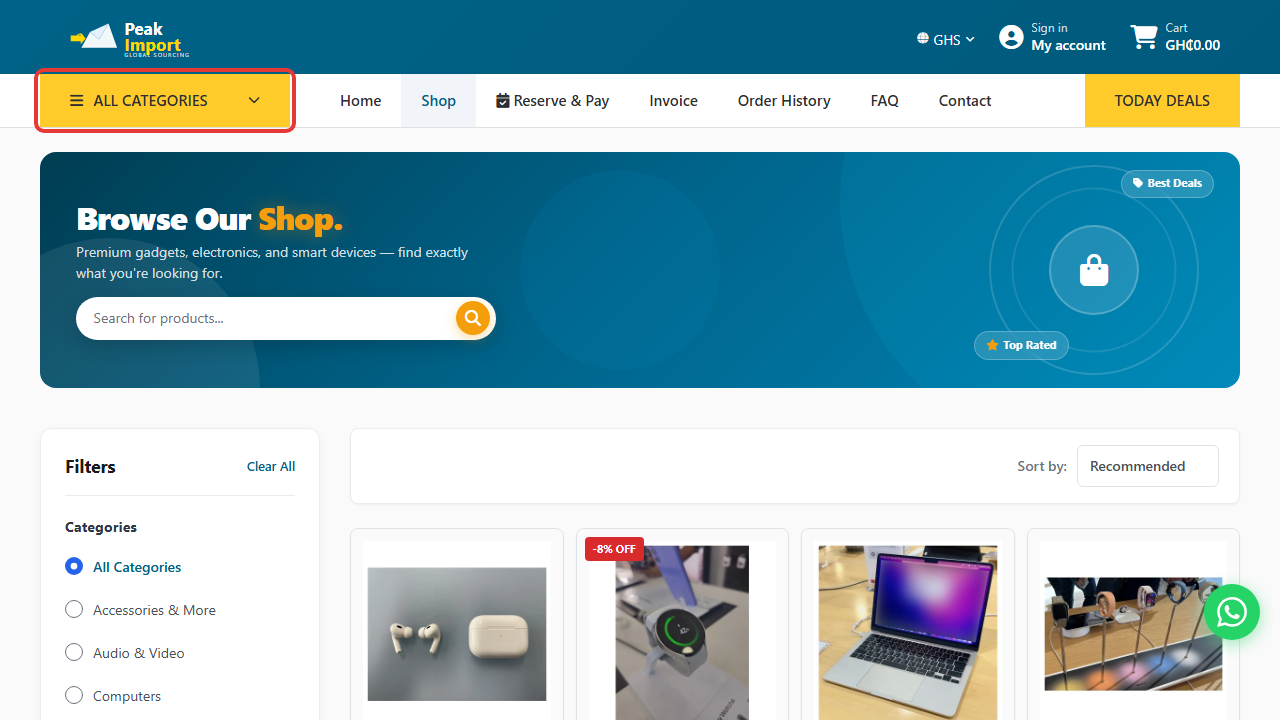
Step 2: Filter by category (optional)
Use ALL CATEGORIES to jump to Phones, Laptops, Tablets and more.
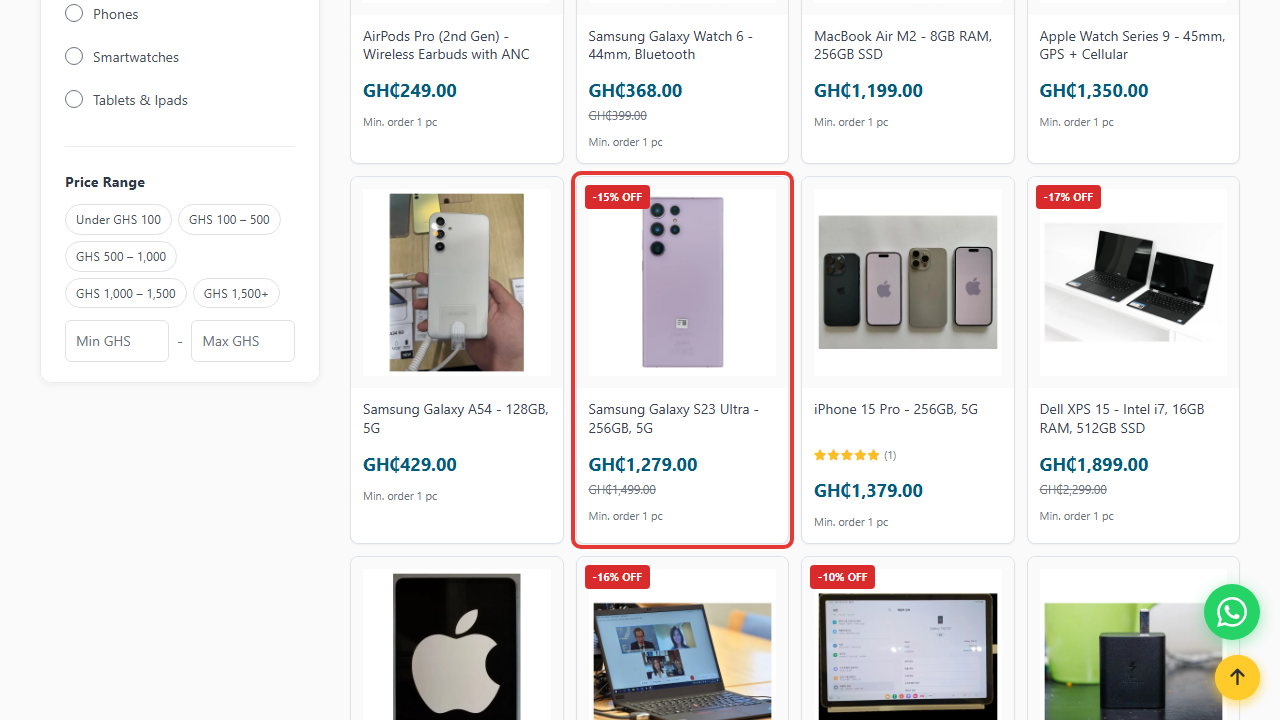
Step 3: Choose a product
Click a product to open its page.
Step 4: Check price and stock
The product page shows the price in GH₵ and how many are in stock.
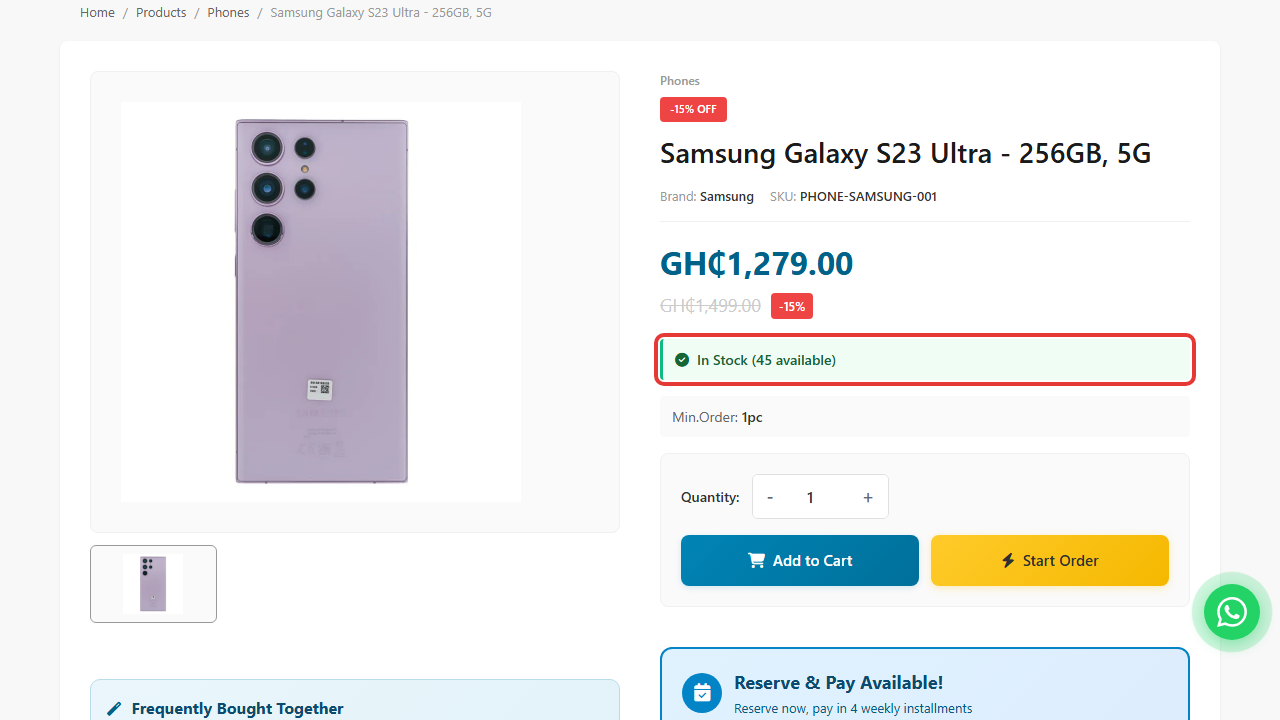
2. Add it to your cart
Step 5: Set the quantity
Use − and + to choose how many you want.
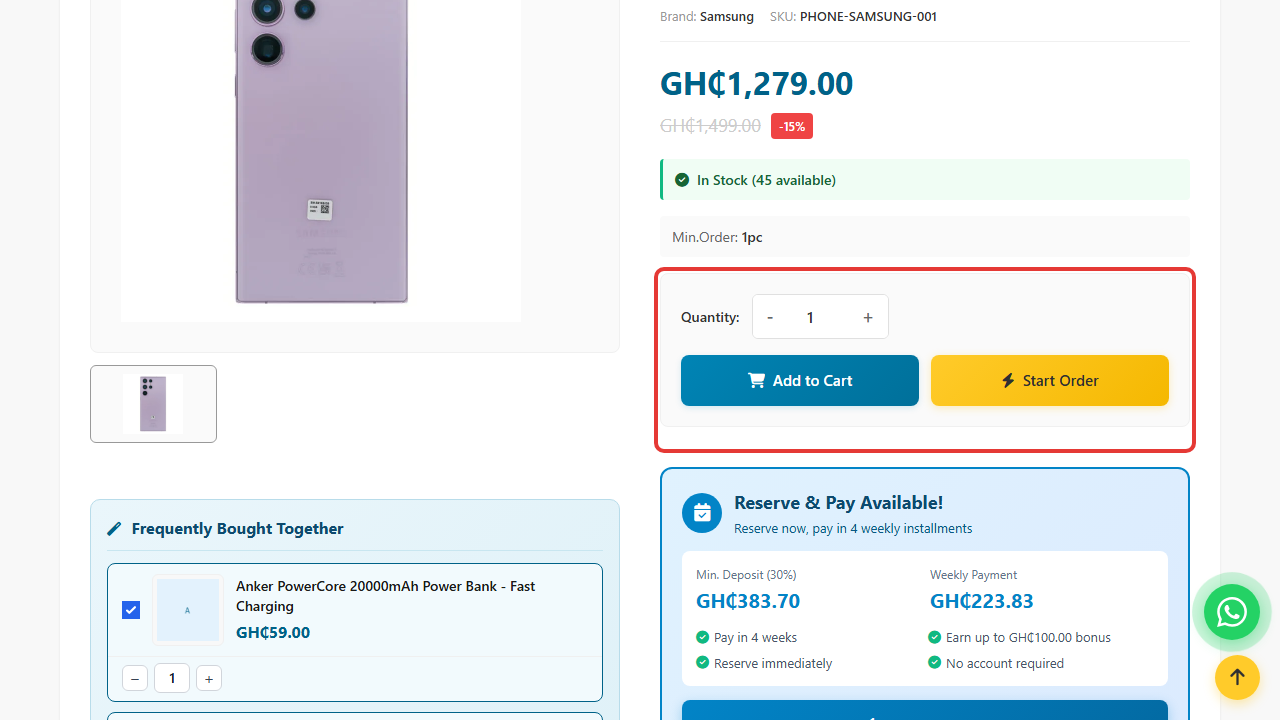
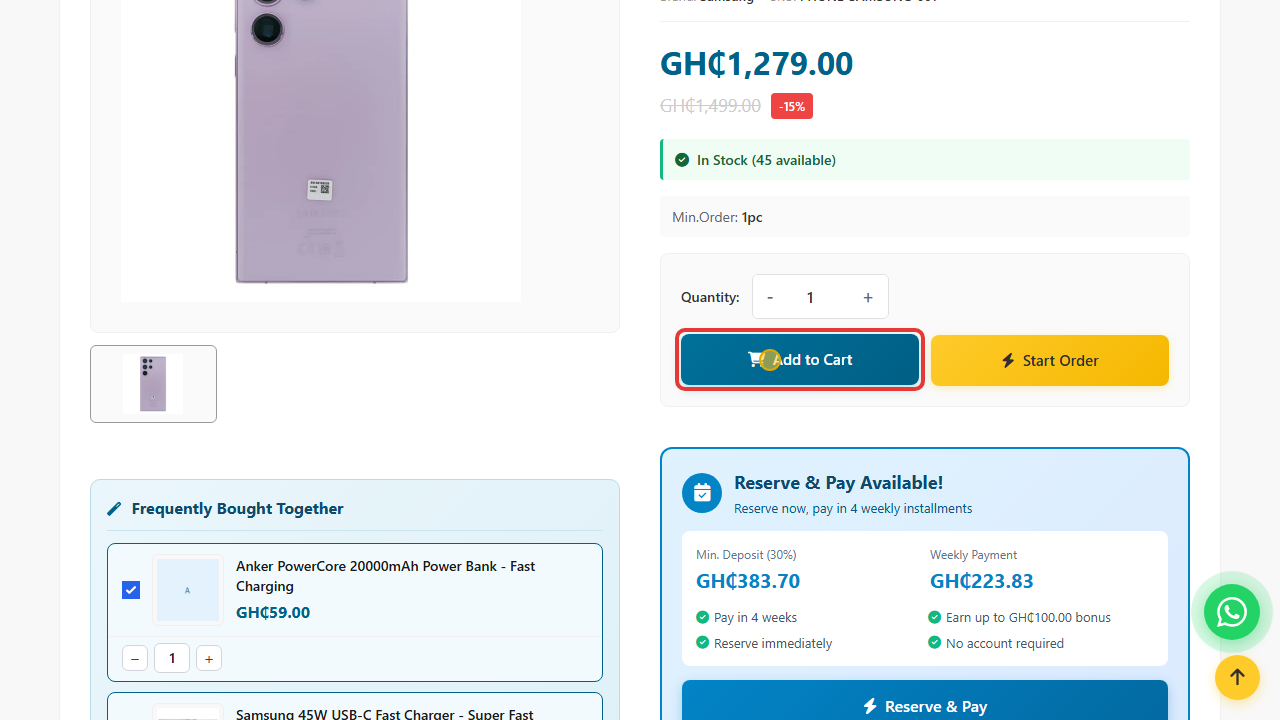
Step 6: Add to Cart
Tap Add to Cart. Start Order adds it and goes straight to checkout.
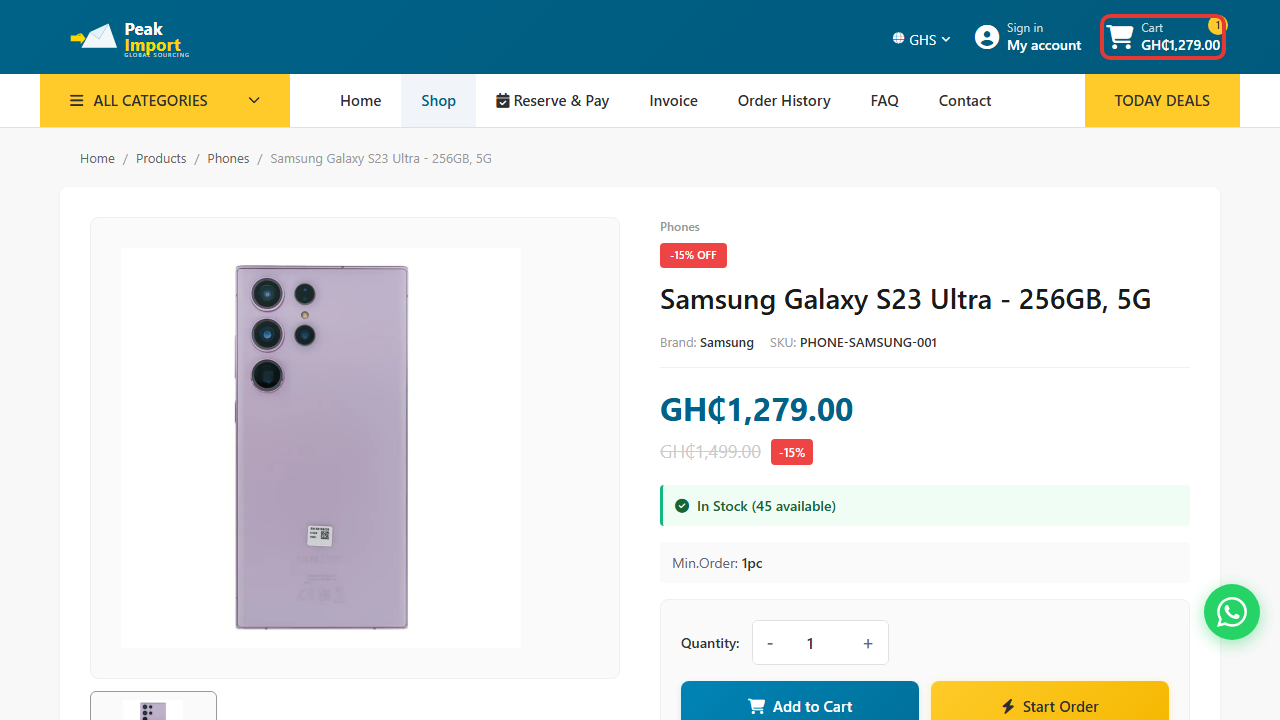
Step 7: Open your cart
The cart at the top right updates. Open it to review your items.
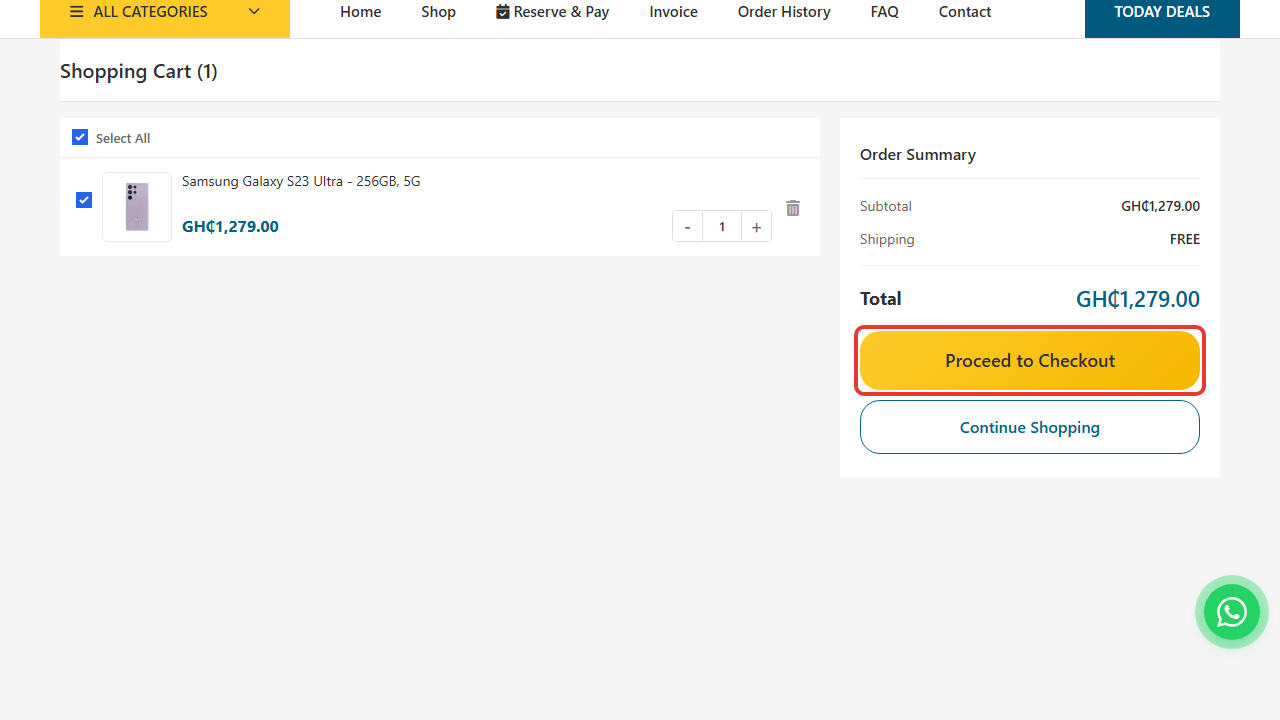
Step 8: Review the cart
Change quantities or remove items, then tap Proceed to Checkout.
3. Fill in checkout
Step 9: The checkout page
Checkout has three short steps. If you have an account, Sign in and the form fills itself. Otherwise, check out as a guest.
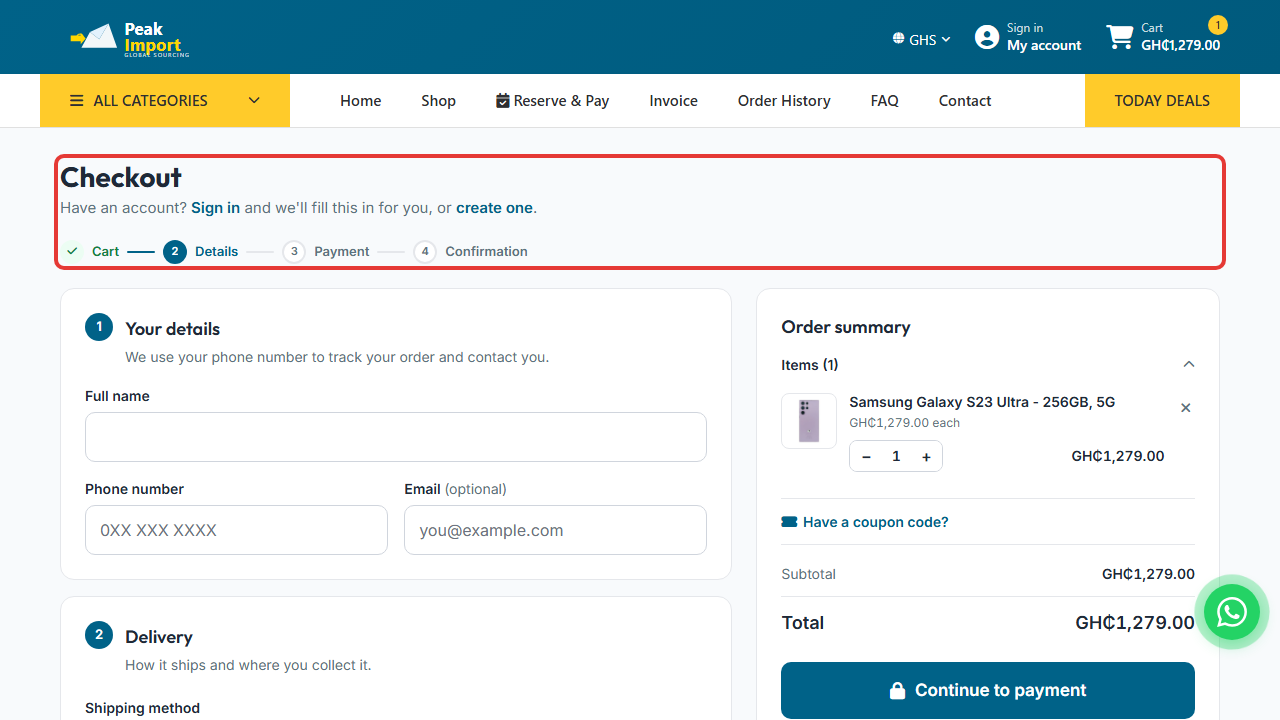
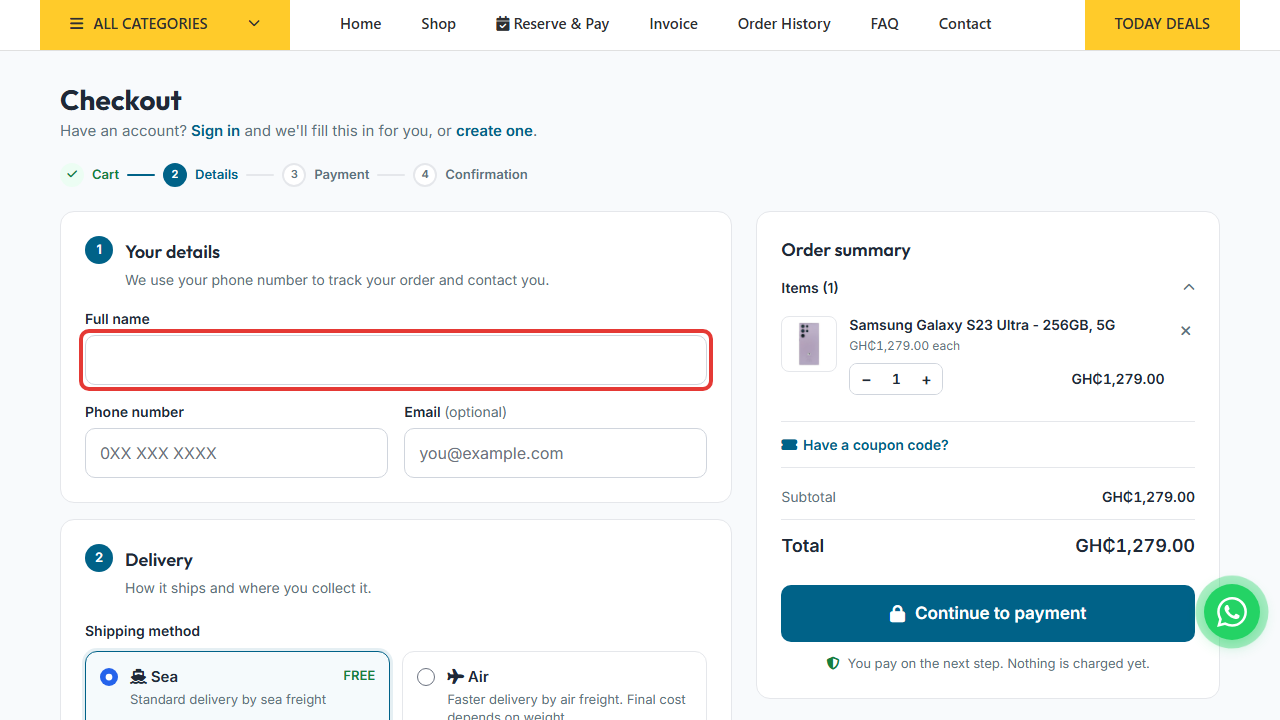
Step 10: Enter your full name
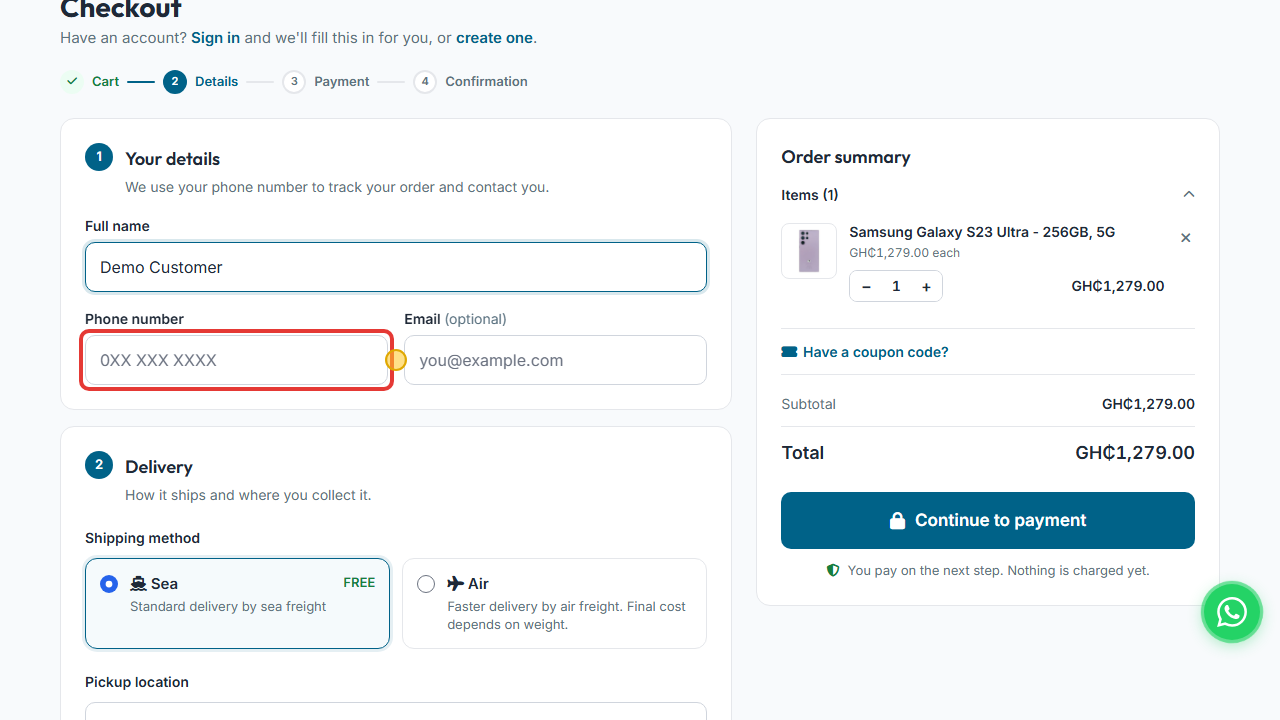
Step 11: Enter your phone number
You will use it to track your order.
Step 12: Email (optional)
Add an email to receive your confirmation and receipt.
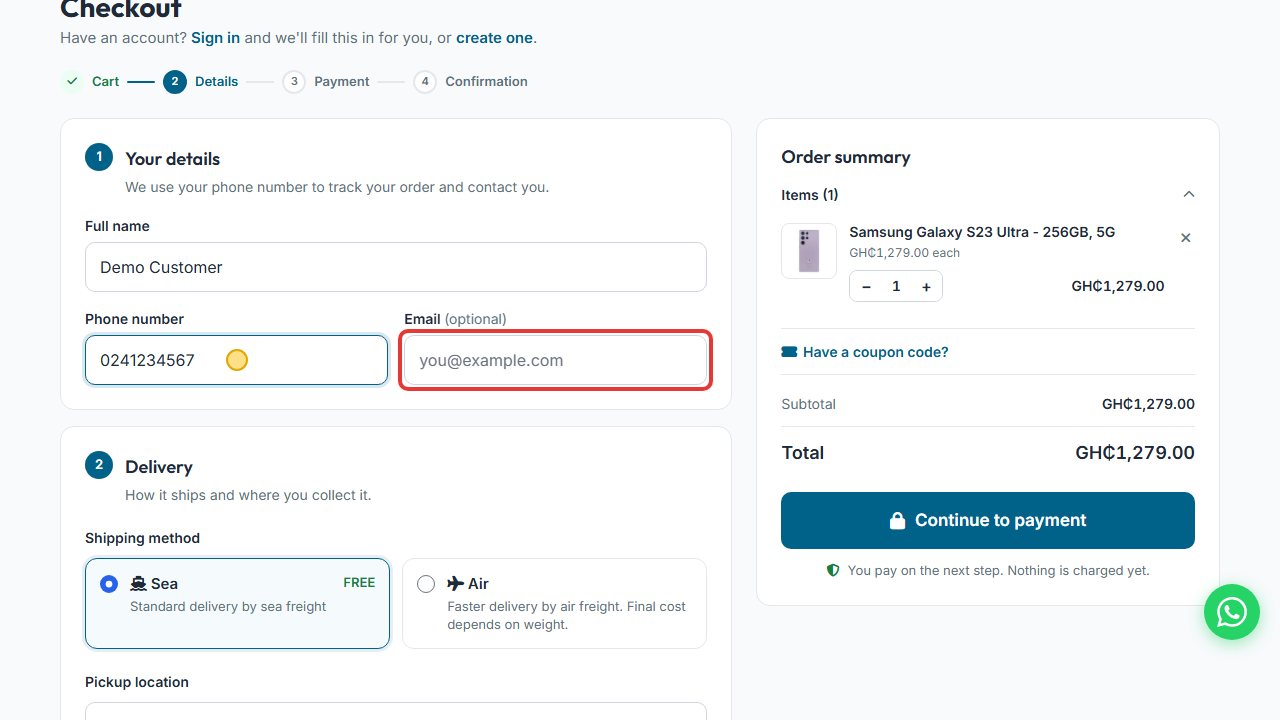
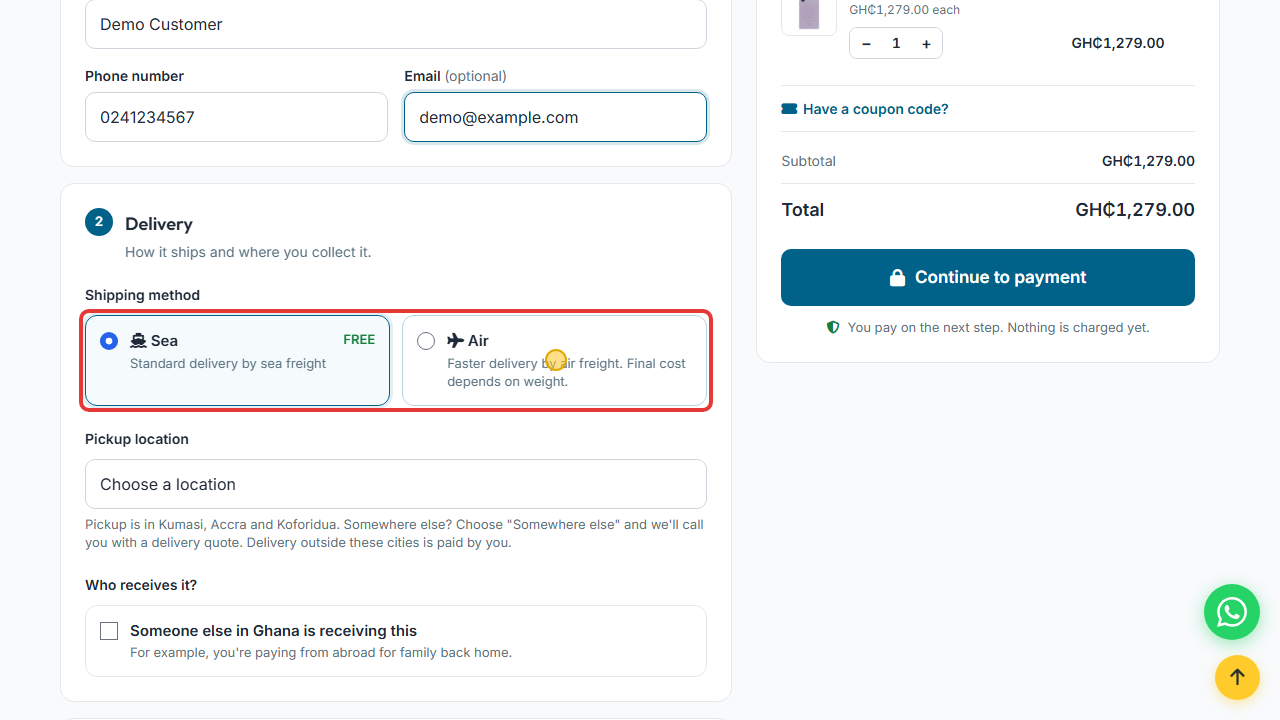
Step 13: Choose a shipping method
Sea is free. Air is faster and asks you to confirm its terms. See Delivery & pickup for timings.
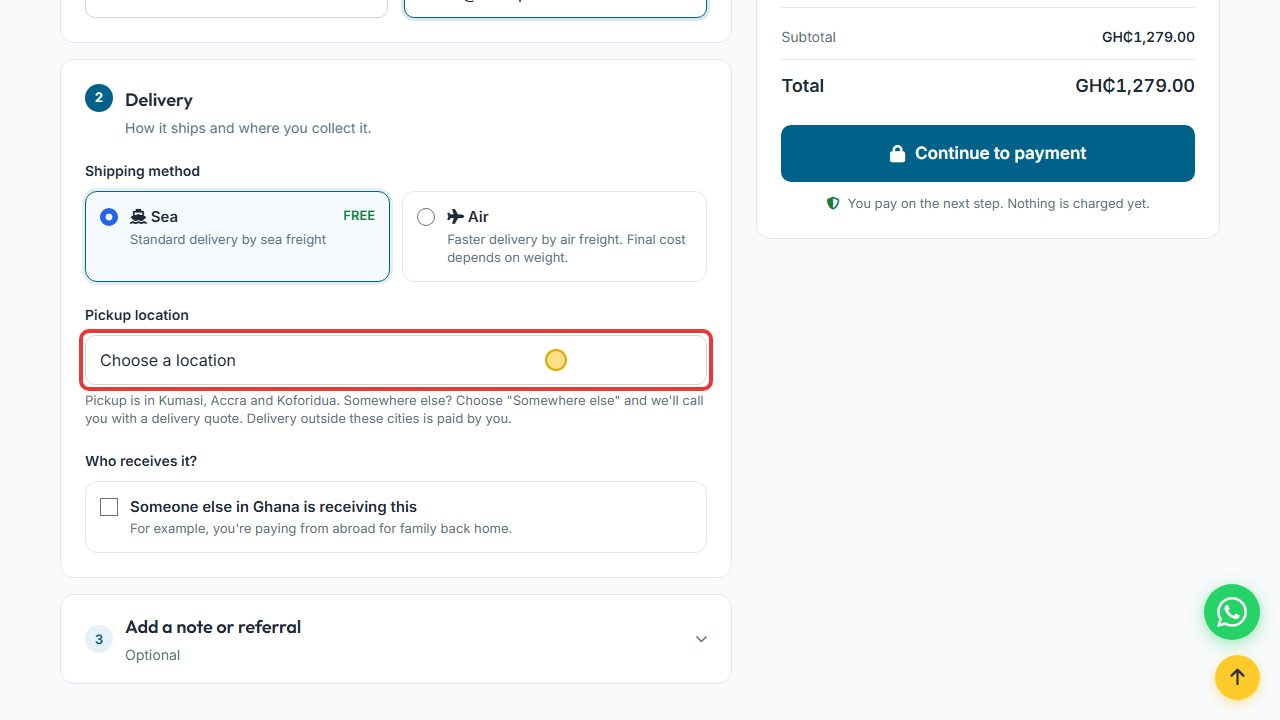
Step 14: Choose a pickup location
Choose Kumasi, Accra or Koforidua. Choose Somewhere else to enter a delivery address.
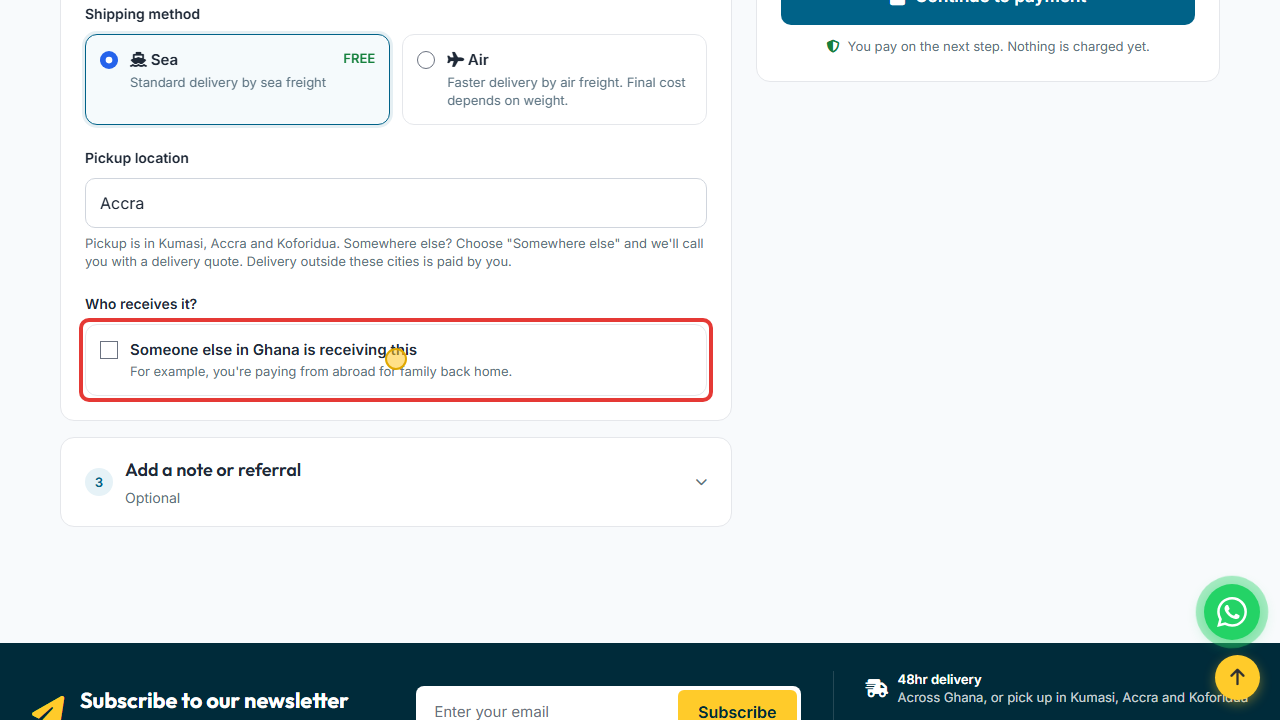
Step 15: Buying for family? (optional)
Tick Someone else in Ghana is receiving this and enter the recipient's name and phone number. This is useful when you pay from abroad for family back home.
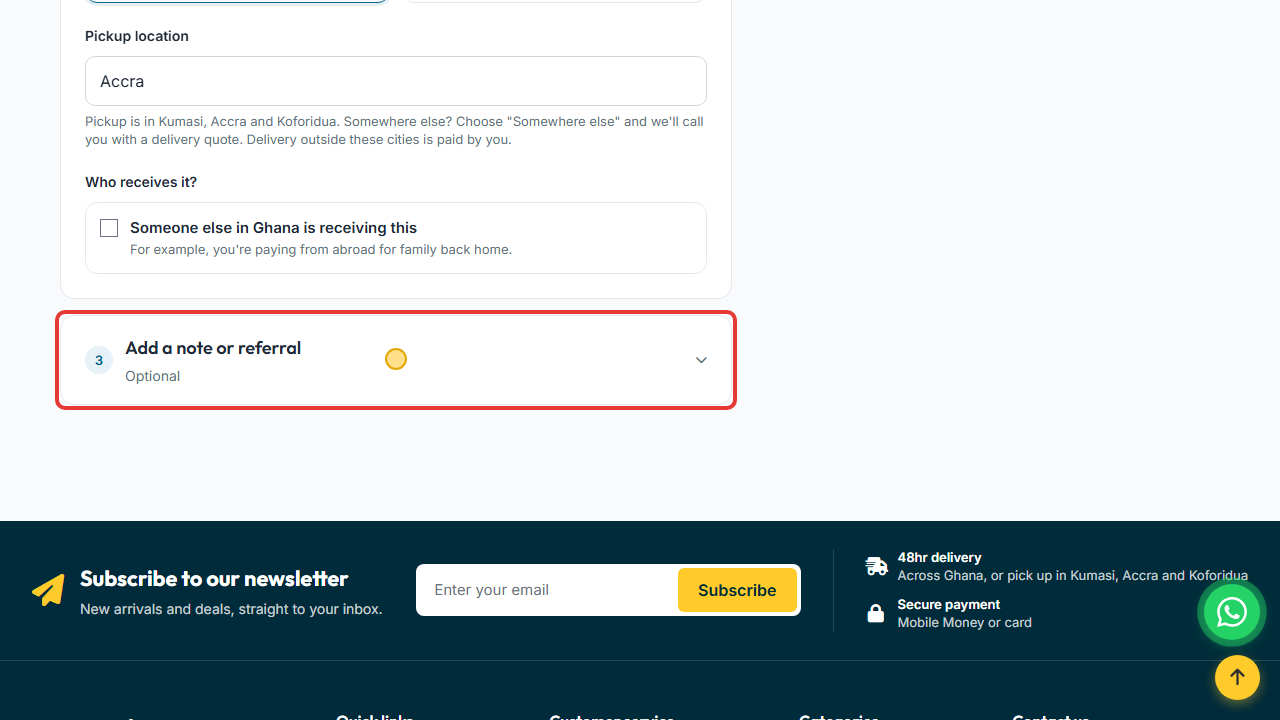
Step 16: Add a note or referral (optional)
Tap to open it if you need it.
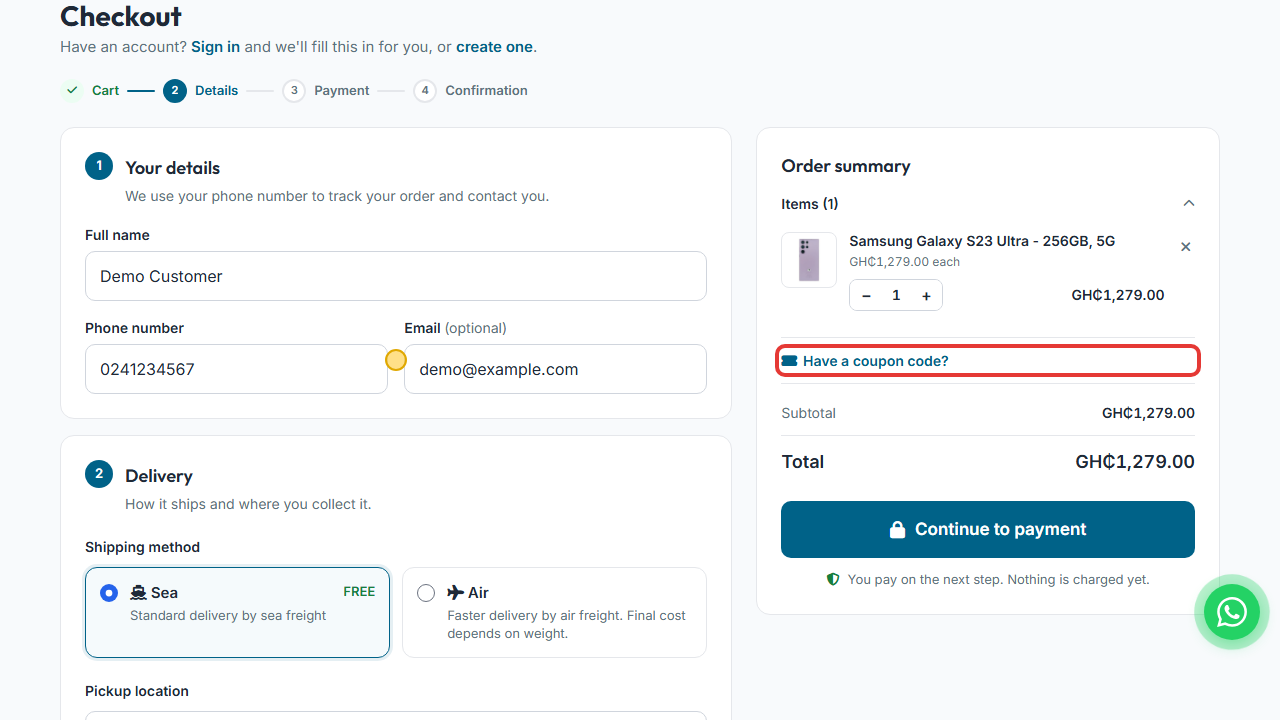
Step 17: Coupon (optional)
Tap Have a coupon code?, enter it and tap Apply.
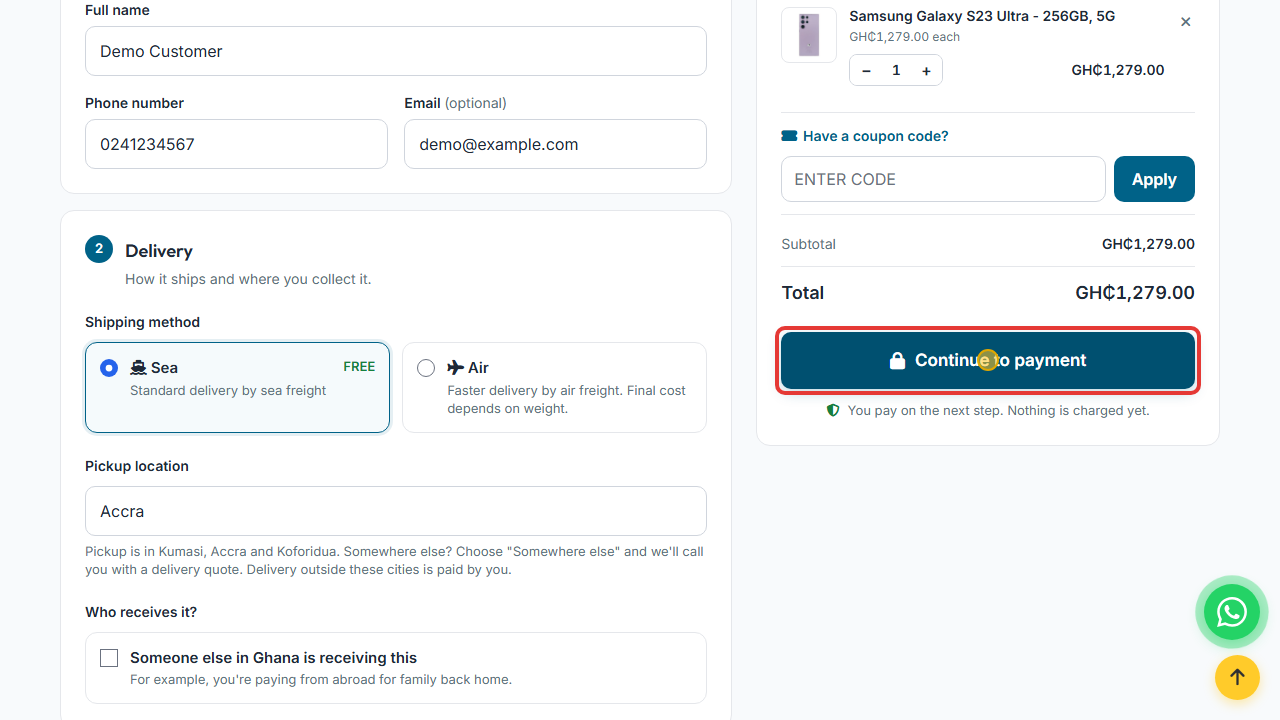
Step 18: Check the total and tap Continue to payment
Your order is created and the payment page opens. Nothing is charged yet.
4. Pay
Step 19: Note your order number
Your order number (it starts with TN-) and the amount to pay are at the top of the page.
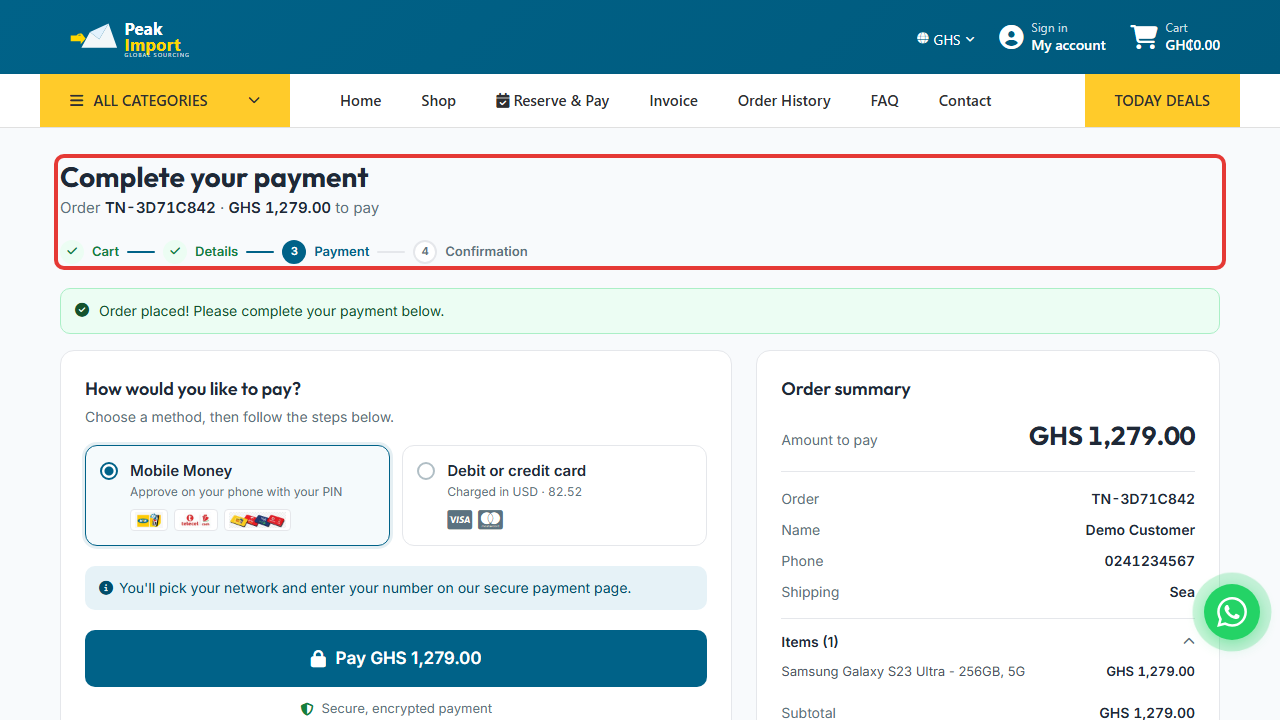
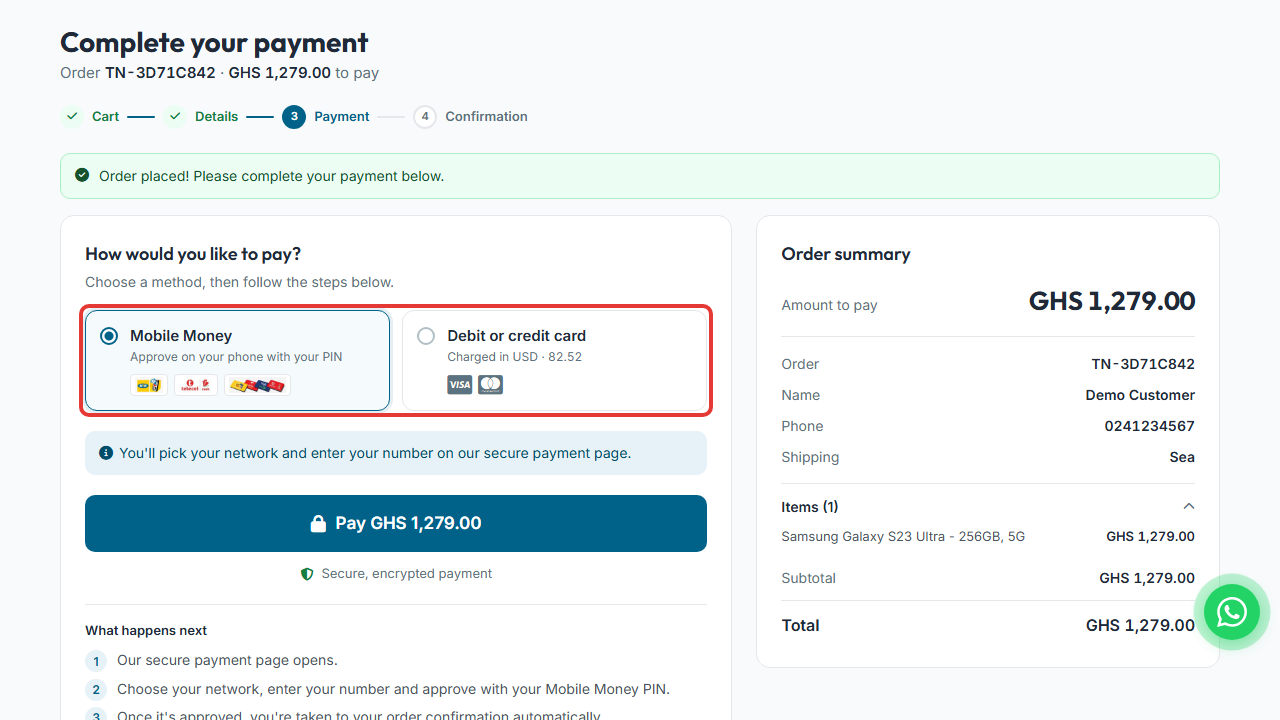
Step 20: Choose how to pay
Mobile Money (MTN, Telecel, AT) or Debit or credit card (Visa / Mastercard). Cards are charged in US dollars; the page shows the amount.
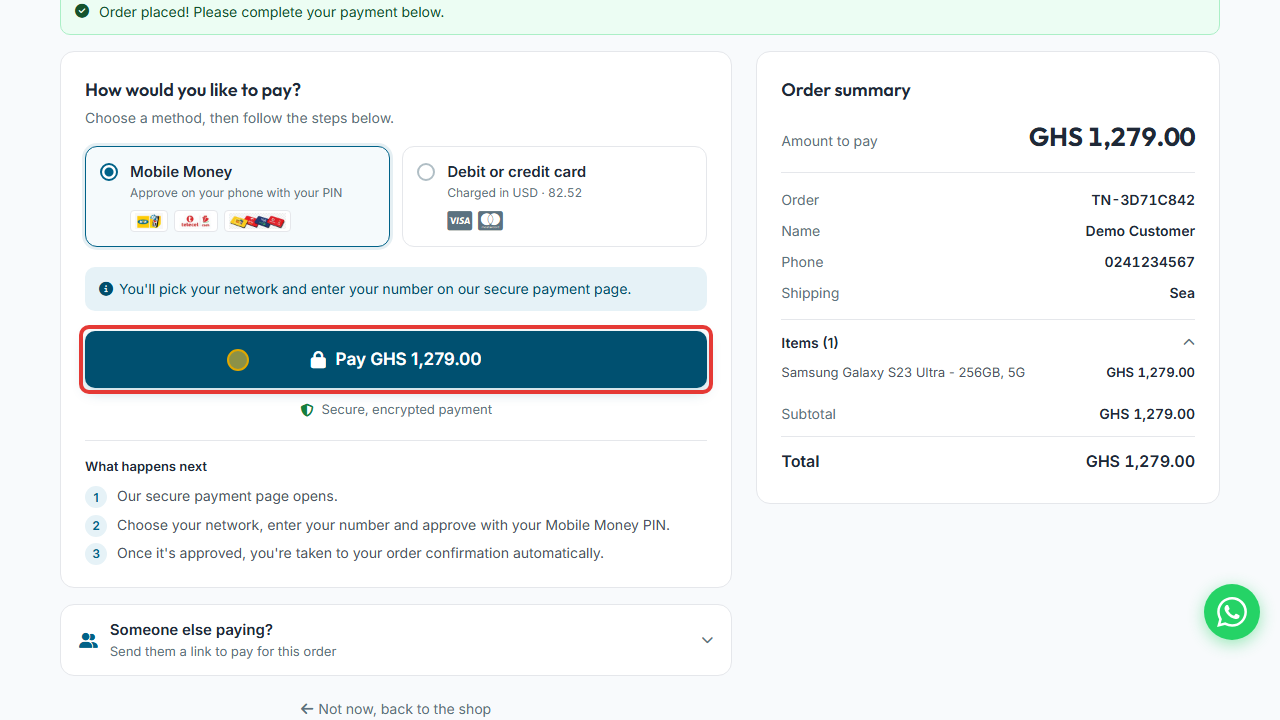
Step 21: Tap Pay
On the secure payment page, choose your network, enter your Mobile Money number and approve with your PIN.
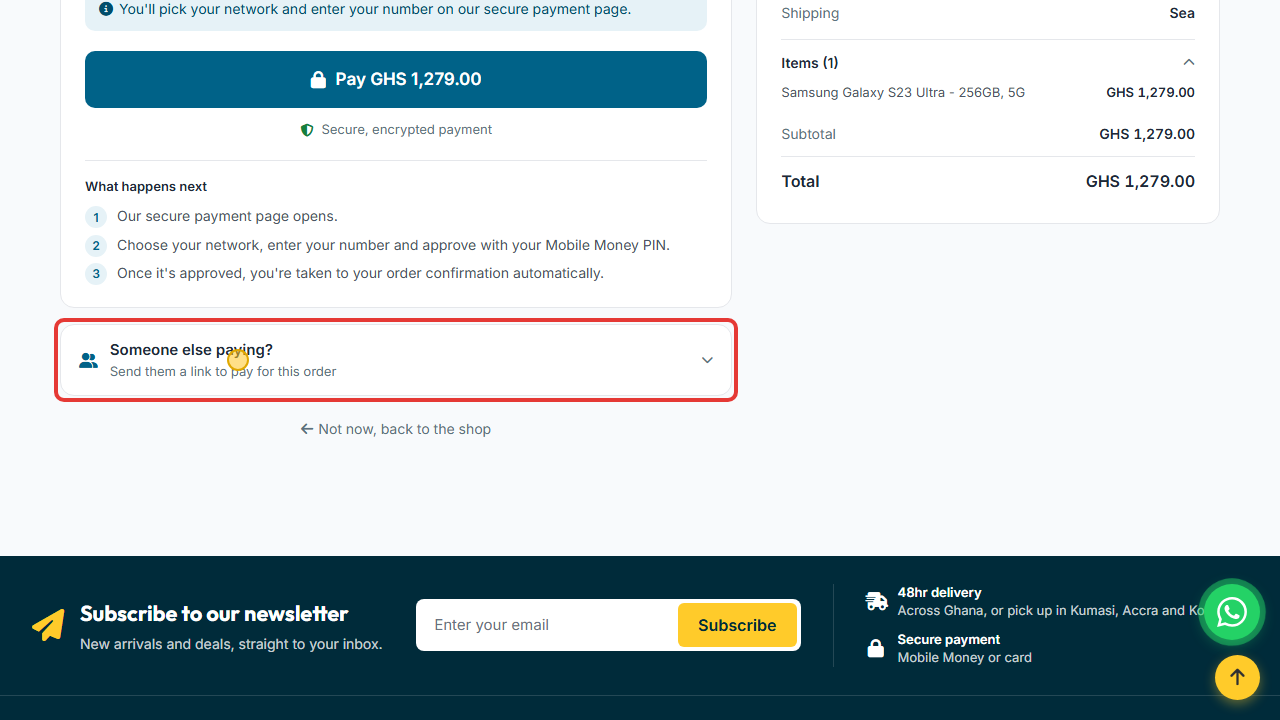
Step 22: Someone else paying? (optional)
Open Someone else paying? to copy a payment link or send it on WhatsApp. The link works for 7 days.
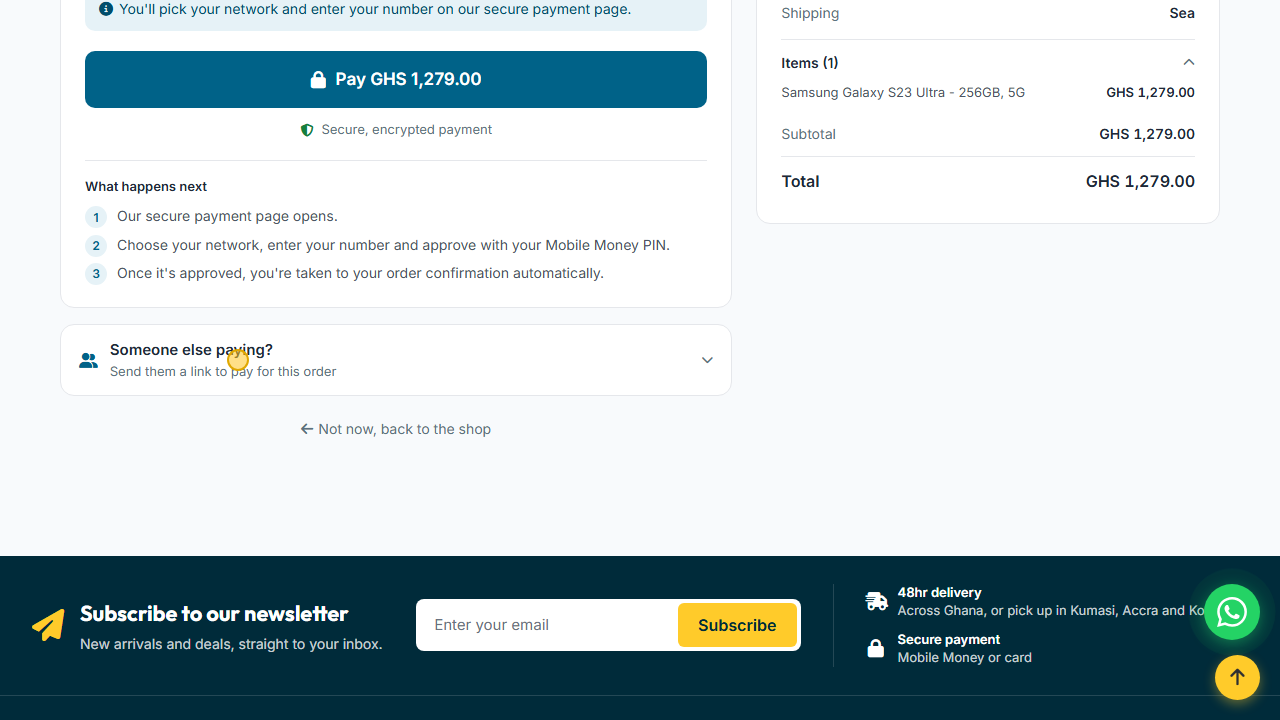
Step 23: Done
Once payment is confirmed you are taken to the confirmation page automatically and get a receipt.
5. Track your order
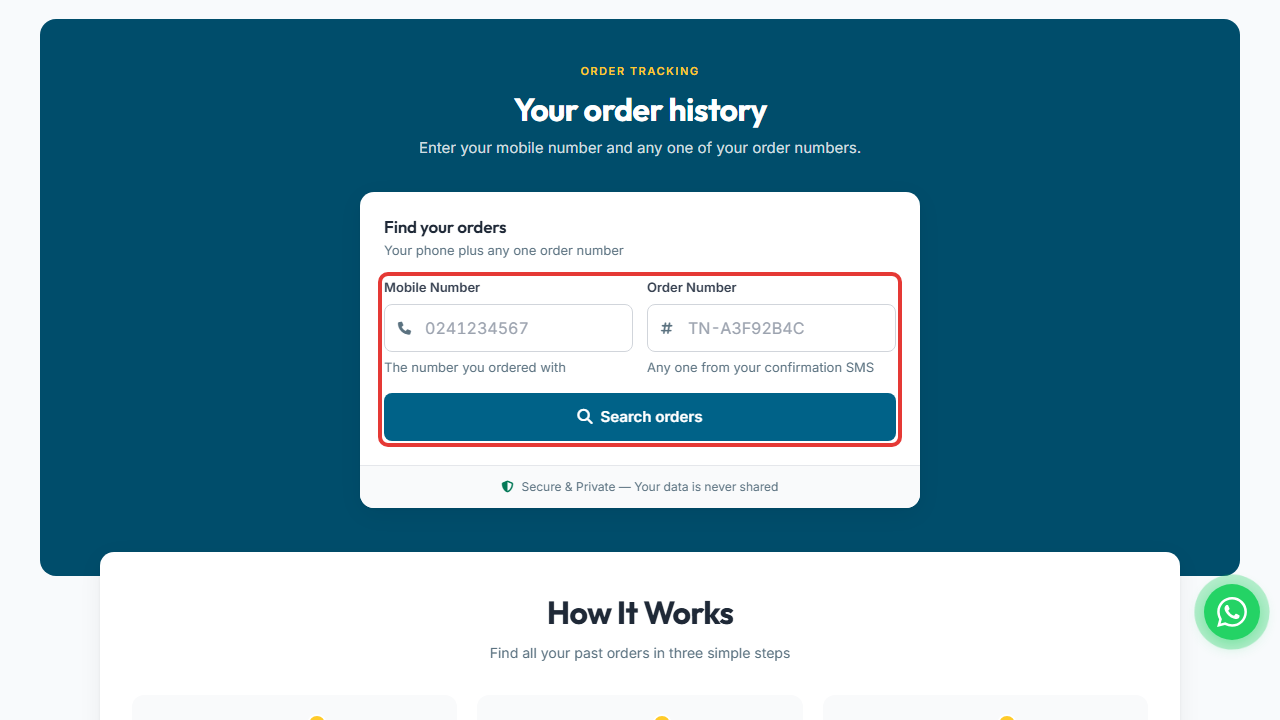
Step 24: Open Order History
Open Order History in the menu.
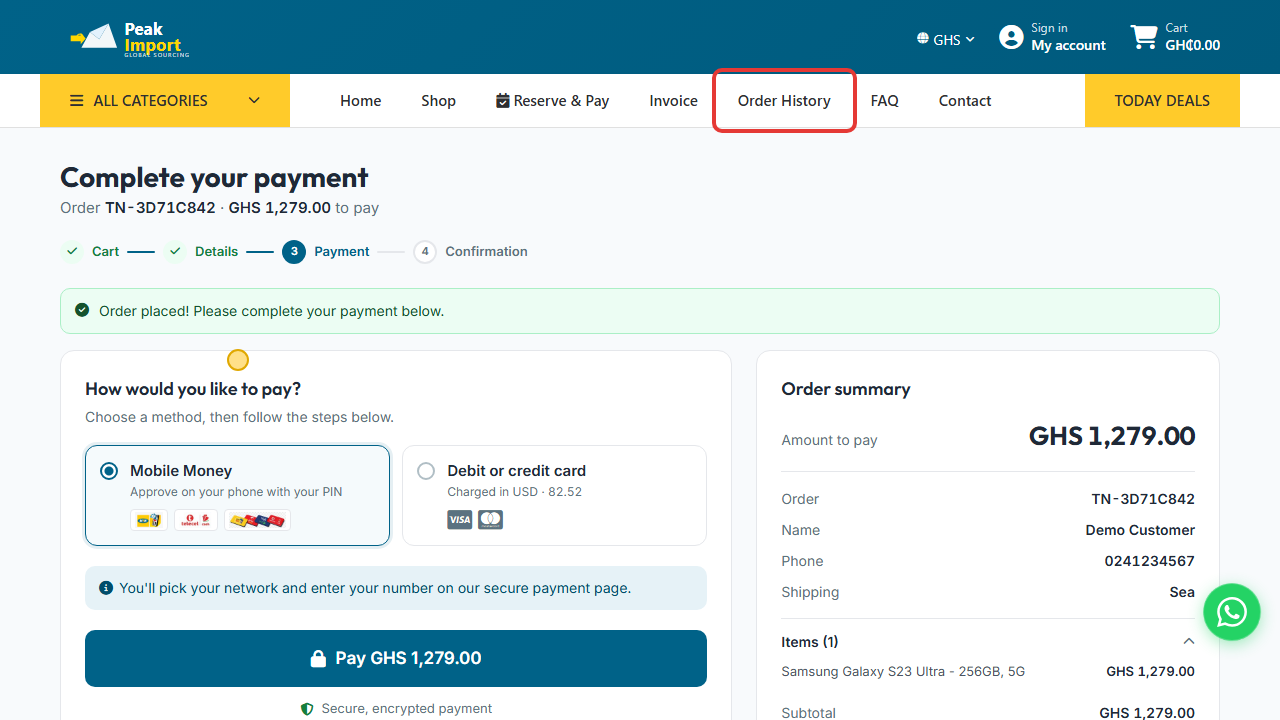
Step 25: Look up your order
Enter your phone number and order number to see your order's status. More in Tracking orders and plans.